
Appearance
Sync Master Data Between Systems
This guide explains how to synchronize master data between external systems (like SAP, Salesforce, or custom databases) and YuzeData.
Overview
Master data synchronization involves two main operations:
| Operation | Description |
|---|---|
| Import | Pull master data from an external system into YuzeData |
| Export | Push master data from YuzeData to an external system |
Each operation is implemented as a workflow step that you configure within a workflow.
When to Use This Guide
Use this guide for syncing master data — entities that can be updated over time (e.g., equipment, locations, suppliers). Master data is mutable and uses version-based tracking.
For syncing datapoints — events and facts that are appended (e.g., sensor readings, transactions, logs) — see Sync Datapoints.
Prerequisites
Before syncing master data, ensure you have:
- Connector instances deployed for the systems you want to pull from and push to
- A master data type defined (e.g., Equipment, Location, Supplier)
- Appropriate schemas for the data being transferred
Importing Master Data
Import master data from an external system into YuzeData using the Import master data workflow step template.
How It Works
- The workflow step calls the connector to fetch data from the external system
- Data is transformed using the configured schema mapping (if provided)
- Each record is validated (must have Identifier and DisplayName)
- Records are created or updated in YuzeData's master data store
Configuration
| Setting | Description |
|---|---|
| Connector | The connector instance to use for fetching data |
| Operation | The connector operation that retrieves data |
| Schema Mapping | (Optional) Transform source data to match required fields |
| Master Data Type | The type of master data to create (e.g., Equipment) |
Required Fields
Each record must have these fields after transformation:
| Field | Required | Description |
|---|---|---|
Identifier | Yes | Unique identifier for the item |
DisplayName | Yes | Human-readable name |
ParentId | No | Identifier of the parent item (for hierarchies) |
All other fields are defined by the configured schema. If the source data doesn't have the required fields, use a schema mapping to assign them from other fields in the source data.
Example: Import Equipment from SAP
- Create a new workflow
- Add a workflow step using the Import master data template
- Configure:
- Connector: Your SAP connector instance
- Operation: Read equipment data
- Master Data Type: Equipment
- Set a schedule (e.g., daily at midnight)
- Activate the workflow
Each time the workflow step runs, it fetches equipment data from SAP and updates the master data in YuzeData.
Exporting Master Data
Export master data from YuzeData to an external system using the Export master data workflow step template.
How It Works
- The workflow step retrieves master data items from YuzeData
- Items are filtered based on sync status (incremental sync)
- Data is sent to the external system via the connector
- The external system returns identifiers for the created/updated records
- Mapping identifiers are automatically created to link systems
Configuration
| Setting | Description |
|---|---|
| Connector | The connector instance to use for sending data |
| Operation | The connector operation that saves data |
| Master Data Type | The type of master data to export |
| Loading Mode | How to handle hierarchical data |
| Incremental Sync | Only sync changed items |
Loading Modes
Choose how hierarchical master data is processed:
| Mode | Description | Use When |
|---|---|---|
| Flat | Process all items without hierarchy | Items are independent |
| Eager | Load parent with all descendants | Small hierarchies |
| Lazy | Process parents first, then children | Large hierarchies |
Incremental Sync
When enabled, the workflow step tracks which items have been synced:
- Only items that changed since the last sync are sent
- Reduces load on external systems
- Sync status can be reset from the master data item's detail page
Example: Export Equipment to Custom System
- Create a new workflow
- Add a workflow step using the Export master data template
- Configure:
- Connector: Your custom system connector
- Operation: Save equipment
- Master Data Type: Equipment
- Loading Mode: Flat
- Incremental Sync: Enabled
- Set a trigger (schedule or after import completes)
- Activate the workflow
Complete Sync Workflow
A typical bidirectional sync workflow includes:
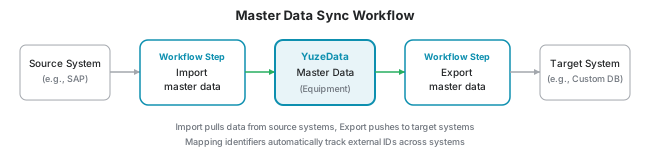
- Import workflow step: Pulls data from SAP daily
- Export workflow step: Triggered after import, pushes to Custom DB
- Mapping: External IDs are automatically tracked via mapping identifiers
Monitoring Sync Status
View sync status in two places:
From the Export workflow step:
- Open the Export master data workflow step
- View the list of items and their sync status
From individual master data items:
- Navigate to Data → Master Data
- Select the master data type
- Click on an item to view details
- Check the Sync Status section
The sync status shows:
- Which workflow steps have synced this item
- Last synced version vs. current version
- Option to reset sync status (forces re-sync)