
Appearance
Datapoints
What are Datapoints?
Datapoints are runtime data instances in YuzeData's execution environment. They represent data that is created, stored, and retrieved during workflow execution. Think of datapoints as variables or data containers that persist beyond a single workflow run.
Datapoints serve as:
- Temporary Storage: Hold data between workflow steps
- Shared State: Share data across multiple workflow runs
- Historical Data: Track changes over time
- Integration Bridge: Pass data between different workflows
Characteristics
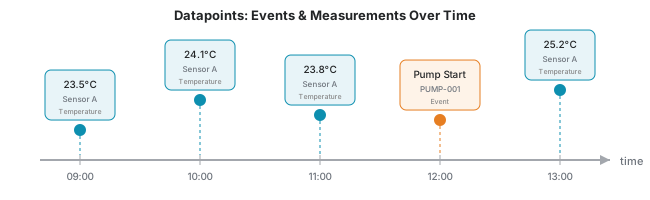
- Transient, event-based data: Sensor readings, transactions, logs
- Workflow-generated: Created during workflow execution
- High volume: Potentially thousands per day
- Time-series nature: Captures events and measurements over time
- Automatically generated: Created by workflow execution
Examples: A temperature reading, an API response, a calculation result
Schematized Datapoints
Datapoints are associated with a schema that defines their structure - the fields they contain and their data types.
Why Use Schemas?
Schemas provide:
- Structure: Define exactly what fields a datapoint contains
- Validation: Ensure datapoints have the expected format
- Filtering: Subscribe to specific datapoint types in data feeds
- Documentation: Understand what data is available in each datapoint
The "Any" Schema
If no schema is specified, datapoints use the built-in Any schema. This is a flexible, catch-all schema that accepts any fields.
Not Recommended for Data Feeds
Using the Any schema is not recommended when setting up data feeds between workflows. Without a specific schema:
- Consuming workflows cannot reliably know what fields to expect
- Filtering becomes difficult since all unschematized datapoints match
- Data validation is not possible
Always define a specific schema when producing datapoints that will be consumed by other workflows.
Best Practice
When creating a data feed:
- Define a schema that describes the structure of your datapoints
- Configure the producing workflow to use that schema
- Configure the consuming workflow to subscribe to that same schema
This ensures a clear contract between workflows about what data is being exchanged.
Buckets
Datapoints are organized into buckets. A bucket is a logical container that groups related datapoints together.
Default Bucket
If no bucket is specified, datapoints are stored in the default bucket.
Custom Buckets
You can create custom buckets to organize datapoints by:
- Use case: Different workflows can write to different buckets
- Data type: Separate buckets for metrics, events, logs
When configuring a workflow's produce feed, you can specify which bucket the datapoints should be written to.
Data Feeds
Data feeds are the mechanism for workflows to produce and consume datapoints. They define how datapoints flow between workflows.
Producing Data (Output)
A workflow step can produce data - meaning it outputs datapoints during execution. When configuring production, you first choose a strategy:
| Strategy | Description |
|---|---|
| Datapoint Feed | Write datapoints to a bucket with a specific schema |
| Nothing | The workflow step does not produce any output (e.g., operations that only write to external systems) |
When producing to a datapoint feed, you configure:
| Setting | Description |
|---|---|
| Schema | The schema that defines the structure of produced datapoints |
| Bucket | Which bucket to write datapoints to (default: default) |
Consuming Data (Input)
A workflow step can consume data from several sources:
| Source | Description |
|---|---|
| Datapoint Feed | Subscribe to datapoints from a bucket with a specific schema |
| Connector | Fetch data from a connector (API, database, etc.) |
| Master Data | Read reference data items for enrichment or processing |
| Nothing | The workflow step does not consume any data (e.g., fire-and-forget operations) |
Subscribing to a Data Feed
When a workflow consumes a datapoint feed, it subscribes to datapoints that match:
- A specific schema (the structure of the data)
- A specific bucket (where the datapoints are stored)
This allows you to chain workflows together - one workflow produces datapoints to a bucket, and another workflow consumes from that same bucket.
Example: Workflow Chaining
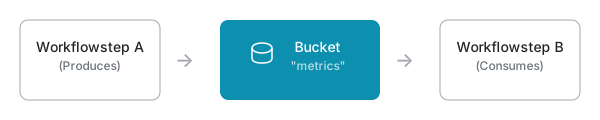
- Workflowstep A fetches data from an external API
- Workflowstep A produces datapoints to the
metricsbucket with a specific schema - Workflowstep B consumes from the
metricsbucket, subscribing to that schema - Workflowstep B processes the datapoints and produces alerts
Batch Processing
When consuming datapoints, you can configure a batch size to control how many datapoints are processed in a single workflow run. This is primarily a performance tuning option that you can adjust based on your needs.
Position Tracking
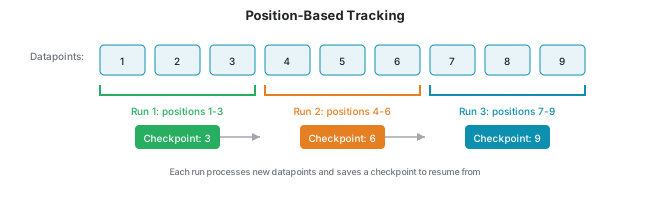
Data feeds use position-based tracking to ensure reliable, exactly-once processing of datapoints.
How It Works
Every datapoint has a position: When a datapoint is written, it's assigned an auto-incrementing position number. This establishes the order in which datapoints were created.
Checkpoints remember progress: After a workflow successfully processes a batch of datapoints, it saves a checkpoint - recording the highest position it processed.
Resume from last position: On the next run, the workflow queries for datapoints with a position greater than the last checkpoint. This ensures no datapoints are missed or processed twice.
Example Flow
Run 1: Process datapoints at positions 1-100 → Save checkpoint: 100
Run 2: Query positions > 100 → Process 101-200 → Save checkpoint: 200
Run 3: Query positions > 200 → Process 201-250 → Save checkpoint: 250
Why This Matters
- Reliability: If a workflow fails mid-batch, it resumes from the last successful checkpoint
- No duplicates: Each datapoint is processed exactly once
- Independent consumers: Multiple workflows can consume from the same bucket, each maintaining their own checkpoint position
Datapoints Explorer
The Datapoints Explorer provides a user interface for searching, viewing, and exporting datapoints. Access it via Data → Datapoints.
Searching Datapoints
To explore datapoints:
- Select a Schema - Choose which schema's datapoints you want to view
- Select a Bucket - Choose which bucket to search (defaults to
default) - Apply Filters (optional) - Add property filters to narrow results
- Click Search - Execute the search with your criteria
View Settings
Click View Settings to customize the display:
| Setting | Description |
|---|---|
| Workflow Step Checkpoint Tracking | Select a workflow step to highlight which datapoints have been processed. Processed datapoints show in green, unprocessed in yellow. |
| Custom Fields | Show additional metadata columns: Created On, Timestamp, Produced By, Position |
Exporting Data
Click Export Excel to download the current search results as an Excel file. This exports up to 10,000 datapoints matching your current schema, bucket, and filter criteria.
Data Table
The results table displays:
- Schema Fields - Columns based on the selected schema's field definitions
- Custom Fields (if enabled) - Additional metadata like timestamps and position
- Details - Click to view the full datapoint details in a dialog
File fields
A field of type File shows its value as the file name with a download link — click it to download the original file (for example, a PDF or image brought in by a connector). See Schemas for the full list of field types.