
Appearance
Master Data
What is Master Data?
Master Data, also called Reference Data Items (RDI) in the YuzeData platform, represents centralized, reusable data entities that model real-world objects within your organization. These include assets, locations, equipment, suppliers, products, facilities, and any other entities that are referenced across multiple workflows and processes.
Master Data provides a single source of truth for organizational information, enabling consistent data usage across the platform and integration with external systems.
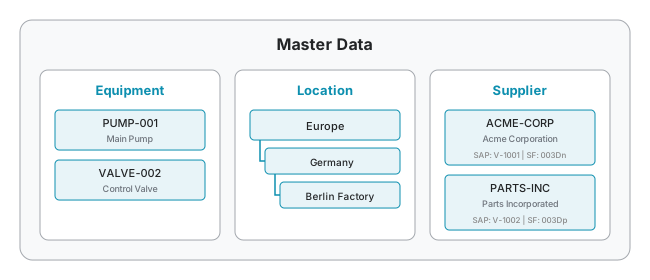
Key Characteristics
Master Data is:
- Centralized: A single repository for organizational reference information
- Reusable: Referenced by multiple workflows, reports, and processes
- Structured: Organized by types with flexible metadata schemas
- Versioned: Changes are tracked over time
- Integrated: Can map to external system identifiers for data synchronization
- Searchable: Quickly find items using filters and queries
Item Identifiers
Every master data item has a unique identifier that can be used to reference it in workflows, APIs, and other parts of the system.
Internal Identifiers
Internal identifiers are the primary way to reference master data items within YuzeData. They follow this format:
master-data:{type}:{key}Examples:
| Item | Internal Identifier |
|---|---|
| Equipment with key "PUMP-001" | master-data:Equipment:PUMP-001 |
| Location with key "BERLIN-SITE" | master-data:Location:BERLIN-SITE |
| Supplier with key "ACME-CORP" | master-data:Supplier:ACME-CORP |
External Identifiers
When integrating data from another system, that system usually doesn't know YuzeData's own key for an item — it knows the item by its own ID (a SAP supplier number, a Salesforce record ID, an ISO country code). An external identifier lets you reference a master data item by one of these IDs instead of its YuzeData key.
Because each external ID is scoped to the system it came from, the same item can be referenced from many systems without their IDs colliding.
External identifiers follow this format:
master-data-ext:{type}:{source}:{external-key}Examples:
| Description | External Identifier |
|---|---|
| Equipment by SAP ID | master-data-ext:Equipment:SAP:10045678 |
| Location by Salesforce ID | master-data-ext:Location:Salesforce:003Dn00000ABC |
| Supplier by legacy system ID | master-data-ext:Supplier:LegacyERP:V-456 |
Automatic Resolution
When you use an external identifier, YuzeData automatically resolves it to the correct internal item by looking up its mapping identifier. This means you can work with external system IDs without needing to know the internal keys.
External identifiers are produced two ways: by importing mapping identifiers (the Id_ columns below), or by the Master Data Item Identifier mapping task in a schema mapping, which builds the reference from a source field during a workflow.
Mapping Identifiers
Mapping identifiers allow you to link a master data item to its corresponding ID in external systems. This is essential for integrations where the same entity exists in multiple systems with different identifiers.
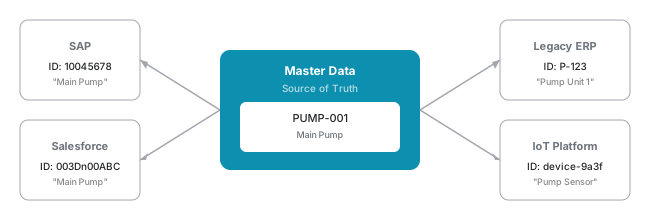
How It Works
Each master data item can have multiple mapping identifiers, one per external system:
| Master Data Item | SAP ID | Salesforce ID | Legacy System ID |
|---|---|---|---|
| Pump-001 | 10045678 | 003Dn00000ABC | P-123 |
| Valve-002 | 10045679 | 003Dn00000DEF | V-456 |
Adding Mapping Identifiers via Import
In CSV/Excel imports, use columns prefixed with Id_ followed by the source system name:
| Key | DisplayName | Id_SAP | Id_Salesforce |
|---|---|---|---|
| PUMP-001 | Main Pump | 10045678 | 003Dn00000ABC |
The column name Id_SAP creates a mapping identifier with:
- Source System:
SAP - Value:
10045678
Unique Identifiers
Mapping identifier values must be unique within the same source system. You cannot have two items with the same SAP ID.
Master Data Types
Master Data is organized into types. Each type represents a category of reference data in your organization.
What is a Type?
A type defines a distinct category of master data items. For example:
Equipment- for pumps, valves, sensorsLocation- for sites, buildings, roomsSupplier- for vendors and contractors
Each type can have:
- Display Name: A human-readable name shown in the UI
- Schema: An optional schema that defines the metadata fields and their data types
- Grid Columns: Configurable columns displayed when viewing items of this type
Schematized Master Data
Master data types can optionally use a schema to define the structure of their items. When a schema is assigned:
- Item metadata must match the schema's field definitions
- Data types are enforced
- Required fields are validated
- All items of that type have a consistent structure
A master data schema must include these required fields:
| Field | Data Type | Description |
|---|---|---|
| Identifier | ReferenceData | The unique identifier for the master data item |
| DisplayName | Text | The human-readable name shown in the interface |
Key Fields
Some schemas designate certain fields as key fields. Key fields are the fields whose values make up the item's unique identifier. For example, a Translation type might use Language Code and Country Code as key fields, so the combination of those values uniquely identifies each translation.
When key fields are defined:
- Creating items: The identifier is generated automatically from the key field values. You fill in the key fields and the system derives the identifier for you.
- Editing items: Key fields cannot be changed after creation, because changing them would change the item's identity.
Creating Types
Types are automatically created when you first add an item of that type, or you can create them explicitly to configure a schema before adding items.
Hierarchical Structure
Master Data items can be organized in parent-child hierarchies within the same type.
How Hierarchies Work
An item can have a parent item of the same type, creating a tree structure:
Region: Europe
├── Country: Germany
│   ├── Site: Berlin Factory
│   └── Site: Munich Warehouse
└── Country: France
    └── Site: Paris Office
Use Cases for Hierarchies
- Locations: Region → Country → Site → Building → Room
- Organizations: Company → Division → Department → Team
- Products: Category → Subcategory → Product Line → SKU
- Equipment: System → Subsystem → Component → Part
Setting Parent Relationships
When creating or importing items, specify the parent using:
- UI: Select the parent item from a dropdown
- Import: Use the
ParentKeycolumn with the key of the parent item
Cross-Type References
Parent-child relationships are within the same type. To link items across different types (e.g., Equipment to Location), use metadata fields with Reference Data Item data type.
Keeping a Hierarchy in Sync
When a hierarchy is owned by a source system, a workflow can keep the whole tree in step with that source: items are added and updated to match the latest data, and items the source has removed are taken out so your stored data reflects exactly what the source sent — no stale branches left behind. Removed branches can either be deleted, or kept and detached from their parent, depending on how the sync is set up.
Because only the parts that actually changed are touched, Incremental Sync re-syncs just the hierarchies that changed instead of the entire dataset.
Plan how whole hierarchies are retired
This keeps each hierarchy the source sends in step, including removing items dropped from within it. But if the source simply stops sending an entire hierarchy, there is no way to tell whether it was deliberately removed or just left out this time — so it stays. Agree up front, when designing the workflow with the source system, how complete hierarchies should be retired.
Shared Master Data
When your organization uses a parent-child customer structure, child customers can access master data from their parent organization. This enables centralized management of common reference data such as countries, regions, currencies, or product categories, while allowing each child customer to maintain their own local master data alongside it.
How It Works
A parent customer maintains master data types and items as usual. A child customer can be configured to access specific types from the parent. Once configured, those parent items appear alongside the child's own local items — but are read-only. The child cannot create, edit, import, or delete parent items.
Parent items are clearly marked in the interface so you can tell them apart from your own local data.
What Can Child Customers Do With Shared Items?
- View and browse shared items from the parent
- Use shared items in workflows and connectors
- Create your own local items of the same type alongside the shared ones
You cannot edit, import into, export, or delete shared items — they are managed by the parent organization.
Configuration
Shared master data types are configured per child customer. See Child Customers — Shared Master Data for setup instructions.
Use Cases
- Countries & Regions: Maintain a single list of countries across all child customers
- Currencies: Centralize currency codes and exchange rate references
- Product Categories: Share a standard product taxonomy
- Regulatory Frameworks: Distribute compliance reference data from the parent
Common Examples
Master data typically includes entities such as:
- Equipment: Pumps, valves, sensors, machinery, vehicles
- Assets: Buildings, facilities, production lines, infrastructure
- Locations: Sites, regions, zones, rooms, warehouses
- Suppliers: Vendors, contractors, service providers
- Products: SKUs, materials, finished goods, components
- Personnel: Employees, contractors, teams, departments
- Organizational Units: Departments, business units, cost centers
Import & Export
Master Data can be imported and exported via CSV or Excel files, making it easy to bulk manage your reference data.
Exporting Data
You can download all items of a master data type as an Excel file. This is useful for:
- Reviewing data offline
- Making bulk edits in a spreadsheet
- Creating backups
- Sharing data with stakeholders
Importing Data
Upload a CSV or Excel file to create or update master data items in bulk.
Required columns:
| Column | Description |
|---|---|
Key | Unique identifier for the item (required) |
DisplayName or Display Name | Human-readable name for the item |
Optional columns:
| Column | Description |
|---|---|
ParentKey or Parent Key | Key of the parent item (for hierarchical data) |
Additional columns:
- Any other columns are treated as metadata fields
- Columns prefixed with
Id_are treated as mapping identifiers (see below)
Import behavior:
- If a
Keyalready exists, the item is updated - If a
Keydoesn't exist, a new item is created - Duplicate keys within the same file are rejected
- The import validates data against the type's schema (if one is assigned)
Separator Detection
CSV files automatically detect the separator (comma, semicolon, or tab) based on the first row.